





Wie kopiert man DVDs auf die Festplatte, um Platz zu schaffen und die Wiedergabe zu erleichtern
DVD carries much of your memories, from your favorite movies to the burned collections of your life moments. However, there are always the needs that you want to copy the DVDs to hard drive on computer:
“There are tons of DVD discs in my room, and no space available for other stuff.”
“There is no DVD driver for my DVD playback on my Mac Pro Air.”
“How to play the DVDs on my iPad. I do not intend to carry the heavy DVD player.”
“I have kept the DVDs for years, and I found some of them get scratched. I do not want to lose them.”
…
At one time or another, you do need to copy the DVDs into the hard drive even the external hard drive for easy playback and make room.
Follow along with the instructions in this post to transfer DVD data into Windows and Mac computer.


Warum schlägt das Kopieren von DVDs auf die Festplatte des Computers fehl?
For copying the homemade and burned DVDs, you could copy the DVDs into computer directly by copying and pasting the files. The copied folder can be playback on Windows Media player, VLC media player, etc., without problem.
However, for the commercial DVDs copy, you cannot copy simply. Almost all DVD movies you purchased are encrypted with CSS protection. For copy those DVDs, you will need the third-party software to rip DVDs with removing the encryption.
The following 3 methods focus on the protected DVD copy.
Komplette/ausgewählte DVD-Titel auf Festplatte unter Windows kopieren
The first way to get DVDs files into hard drive is using Vidmore DVD Monster.
Vidmore DVD Monster is the best software to backup DVD to hard drive in optional 3 modes for Windows 10/8/7 users. It can convert DVD discs to MP4, MKV, AVI, MOV, WMV, etc., and extract MP3, FLAC and more from DVDs at 6x fast ripping speed and 100% original quality.
 Vidmore DVD Ripper
- DVD in MP4, MKV, AVI, MOV, MP3, FLAC usw. für die portable Wiedergabe rippen.
- DVD-Disc 1:1 als Ordner oder ISO-Datei unter Windows ohne Datenverlust kopieren.
- GPU-Beschleunigung beschleunigt das DVD- & Blu-ray-Ripping um das 6-Fache.
- Verschiedene Bearbeitungsfunktionen (Filter, Drehen, Spiegeln, Wasserzeichen, Untertitel, Tonspur usw.)
Step 1. Download Vidmore DVD Monster
Free download this DVD copy software into your computer. Run it after following the on-screen instructions to install it. In the main interface, you should click the “Ripper” tab.
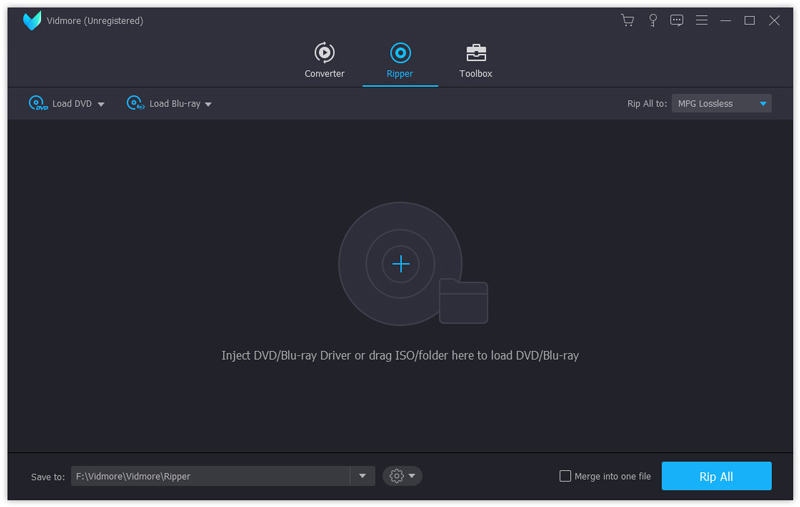
Do not forget to insert the DVD disc into your computer. If your computer does not have the built-in DVD driver, just insert an external DVD driver.
Step 2. Load DVD disc
Here there are 2 ways to load your DVD disc.
- Klicken Sie auf die Plus-Schaltfläche in der Mitte und warten Sie ein paar Sekunden; dieser DVD-Ripper erkennt Ihre DVD-Disc automatisch.
- Wählen Sie “DVD-Disc laden” aus der Dropdown-Liste von “DVD laden”, um Ihren DVD-Disc-Namen auszuwählen.
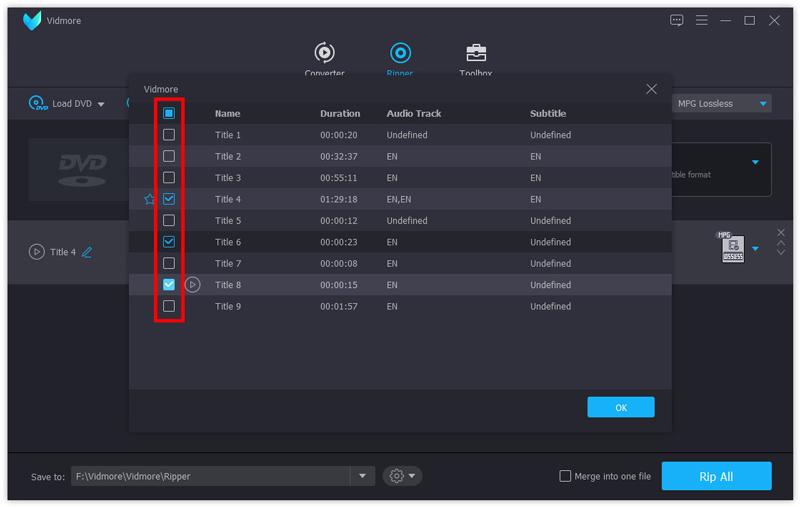
Then this software will detect your main movie title and select it automatically.
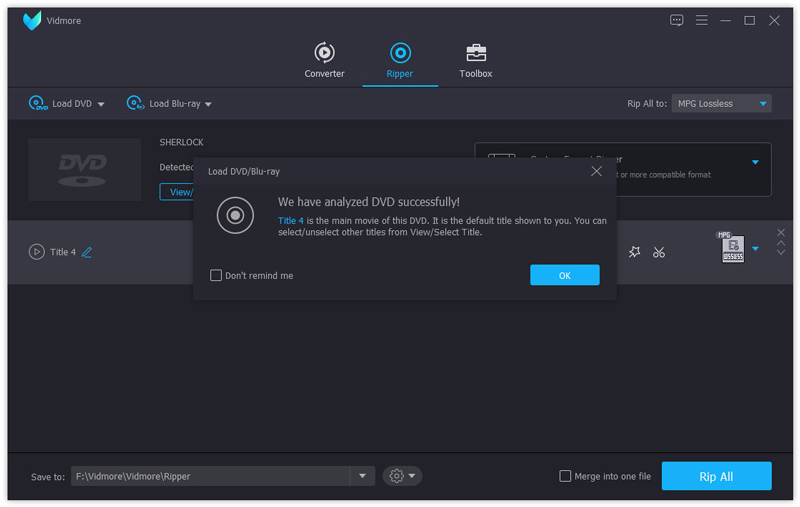
You can also select or view other titles from the DVD disc by clicking “View/Select Title”.
Step 3. Copy DVD disc
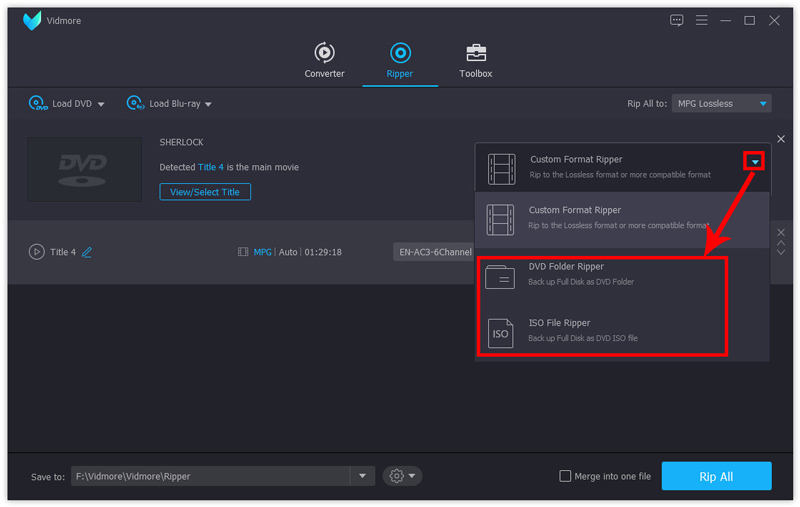
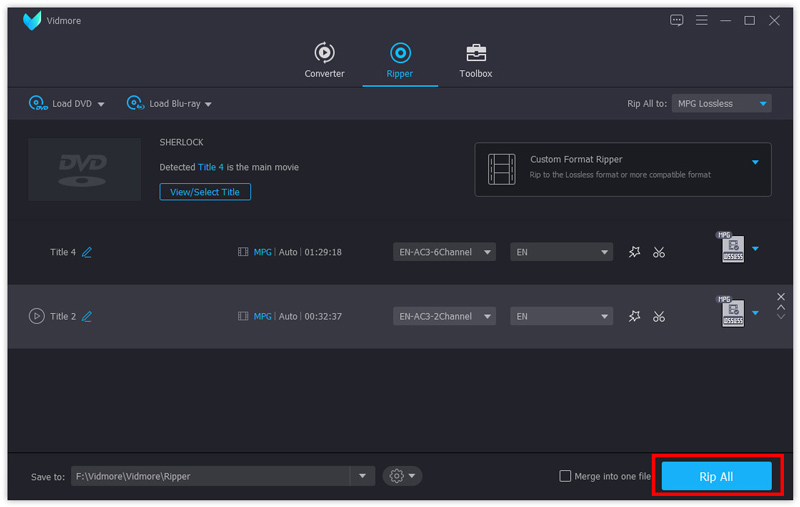
1. For backing up the DVD in 1:1 to store on your computer for further burning, you should transfer DVD as the DVD folder or ISO file on computer.
Just select the copying mode as “DVD Folder Ripper” or “ISO File Ripper” from the drop-down options on the right side.
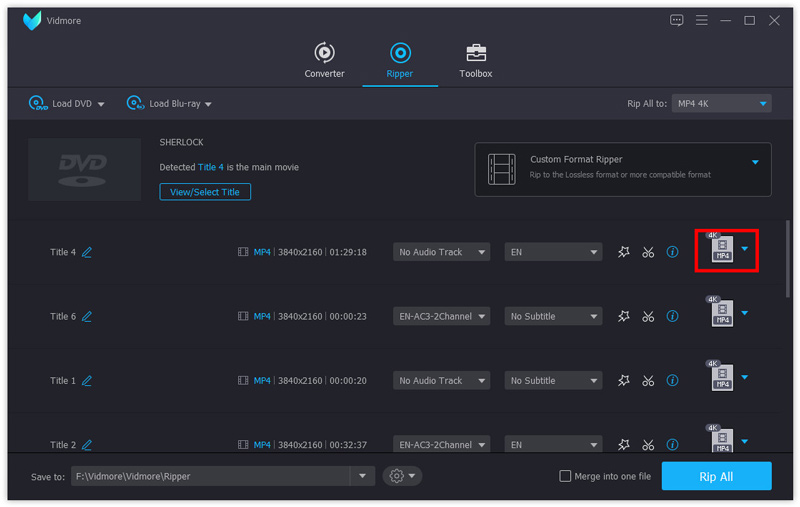
2. For copying DVD to the hard drive for easy playback on your computer or other devices like iPad, Samsung phone, etc., you should rip DVD to other popular formats.
Select “Custom Format Ripper” from the drop-down options on the right side.
Then select the output format for every title separately from the drop-down list.
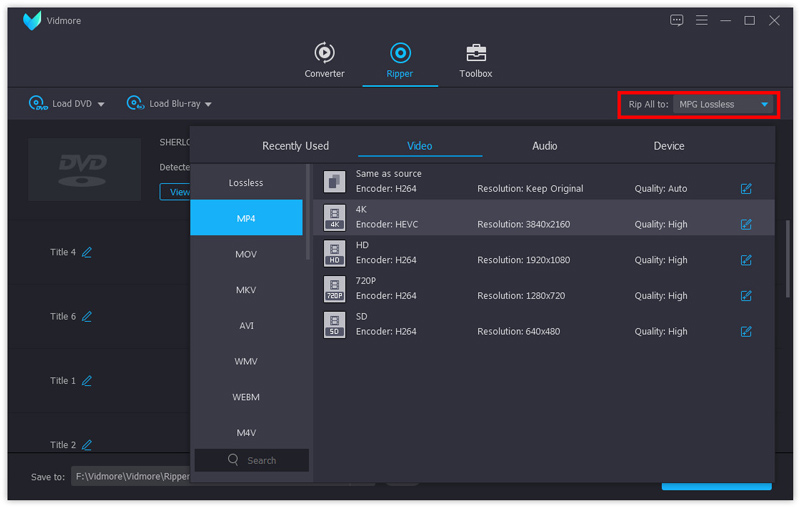
You can set the one format from MPG Lossless, MP4, MOV, MKV, AVI, WMV, WebM, M4V, FLV, TS, VOB, etc., for all titles you selected by clicking the drop-down list of “Rip All to:”.
For saving DVD with the original audio track and subtitle options, you should select MPG Lossless.
Then select the output file destination on your computer and click “Rip” on the bottom-right corner to start to copying to your hard drive.
If you want to copy the DVD files into the external hard drive, just insert the external hard drive into your computer and select it as the destination.
Step 4. Edit DVD movies before copying (Rip DVD option)
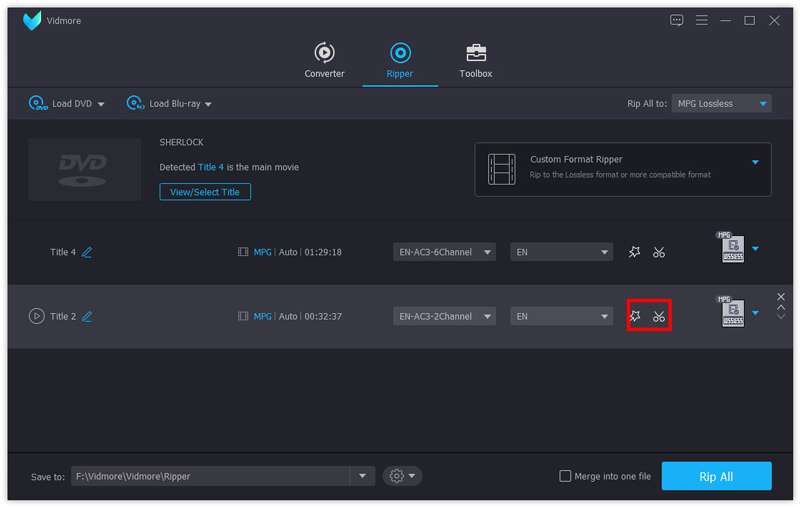
If you want to rip DVD to other video formats, the editing features in this software are available for you.
Click the Edit icon (the start image) and or the Cut icon (the scissors image) then you can start to edit your DVD videos.
Note: When you want to apply the editing effects, you cannot rip DVD to MPG Lossless format and you have to change to other formats.
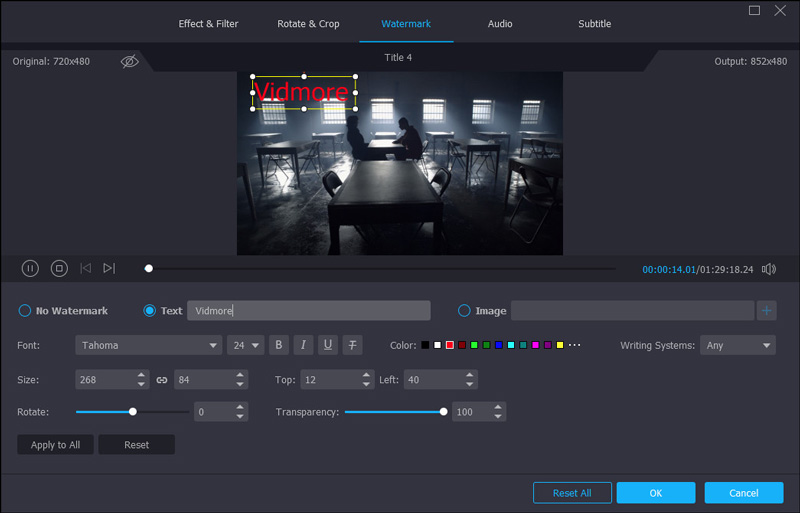
In the editing window, you can add filters, rotate, clip, crop, watermark, change audio track and subtitles, etc.
After that, you could also transfer the copied DVD folder, ISO file or the digital videos into your external hard drive for storing or easy playback.
DVD-Discs als MP4 auf die Festplatte unter Mac rippen
When it comes to Mac users, the DVD backup software is various from App Store on Mac. Here we take 4Video DVD Manager(https://apps.apple.com/us/app/4video-dvd-manager-rip-dvd/id923932086?mt=12) as the example to show you how to store the DVD files into the hard drive.
4Video DVD Manager is the all-in-one DVD ripping software on Mac.
It can convert DVD movies into the popular digital formats like MOV, MP4, M4V, AVI, etc., with powerful editing features, even the 3D movies can be ripped from the DVD disc.
What benefits you can get from the Mac DVD ripper?
- DVD in MOV, MKV, AVI, WMV, M4V, MKV usw. für eine flüssige Wiedergabe ohne DVD-Player rippen.
- Audiodateien wie MP3, WAV, WMV, FLAC, AAC, AIFF, ALAC usw. aus DVD-Filmen extrahieren.
- 3D-DVD-Filme in 3D-Digitalformate unter macOS konvertieren.
- DVD vor dem Ripping bearbeiten, z. B. schneiden, drehen, mit Wasserzeichen versehen, spiegeln, zuschneiden, Effekte anpassen usw.
- Hardware-Beschleunigung verbessert die DVD-Ripping-Geschwindigkeit um das 6‑Fache im Vergleich zu früher.
- Mehrere Audiospuren und Untertitel stehen Ihnen zur Bearbeitung auf der DVD-Disc zur Verfügung.
Now, let’s check how to rip DVD into the hard drive on Mac.
Step 1. Run 4Video DVD Manager on Mac
Search the DVD backup software on App Store on Mac, and download it(https://apps.apple.com/us/app/4video-dvd-manager-rip-dvd/id923932086?mt=12) from App Store on Mac.
Run it after the successful installation.
Insert a DVD disc into your Mac computer.
No DVD driver on Mac? Just plug an external DVD driver into Mac and put the DVD disc into it.
Step 2. Load DVD disc
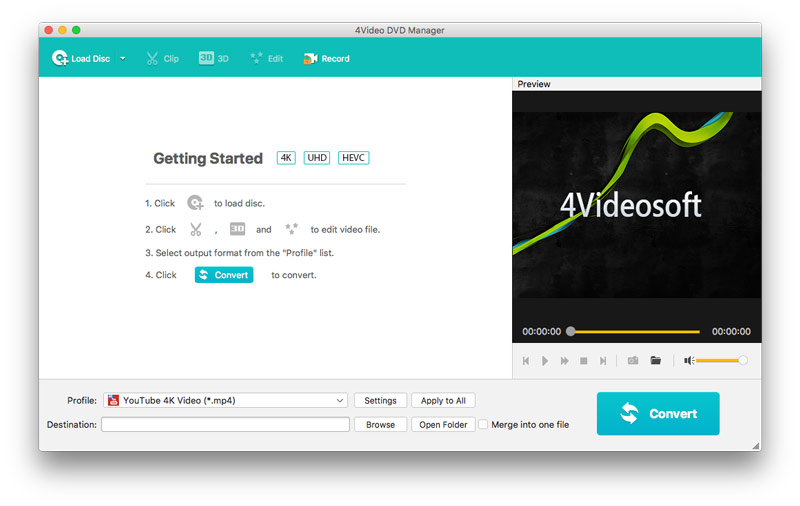
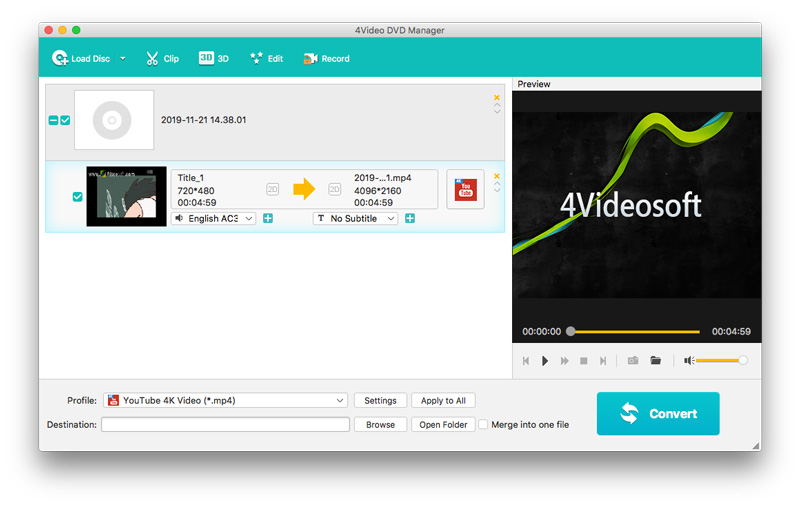
While running this software, click “Load Disc” to import the DVD folder into this software.
Please note that you should load the DVD disc from the root directory, not the folder, if you insert the DVD disc.
Schritt 3. Ausgabeformat wählen
After loading the disc, all the title will be displayed on Mac.
Wählen Sie einen Titel aus und wählen Sie das Ausgabeformat aus der Dropdown-Liste “Profil”, in der MOV, MP4, MKV, WMV, AVI, M4V, FLV, SWF, WebM usw. für Sie verfügbar sind.
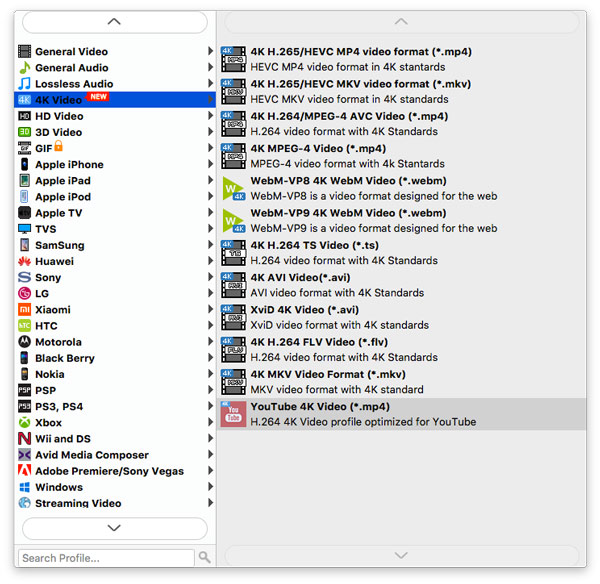
Außerdem können Sie die Ausgabeeinstellungen anpassen, indem Sie neben dem Ausgabeformat auf “Einstellungen” klicken, wo Sie Bildrate, Codec, Bitrate, Lautstärke usw. einstellen können.
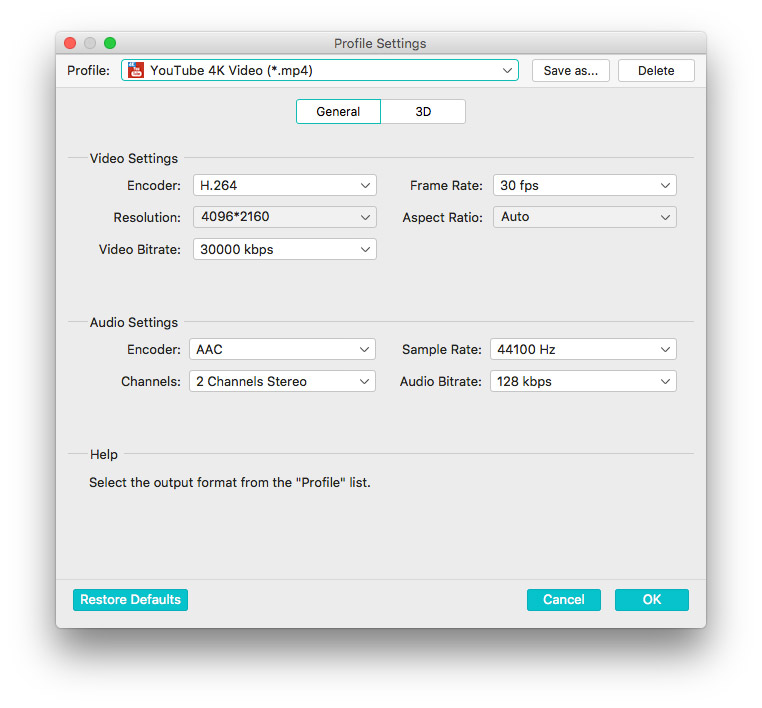
Klicken Sie auf “OK”, um zur Hauptoberfläche dieser Software zurückzukehren.
Schritt 4. DVD-Filme bearbeiten (optional)
Sie können die DVD-Filme auch vor dem Konvertieren bearbeiten. Klicken Sie einfach auf die Schaltfläche “Bearbeiten”, und Sie können damit beginnen, die DVD-Effekte zu drehen, zuzuschneiden, zu schneiden und mit Wasserzeichen zu versehen.
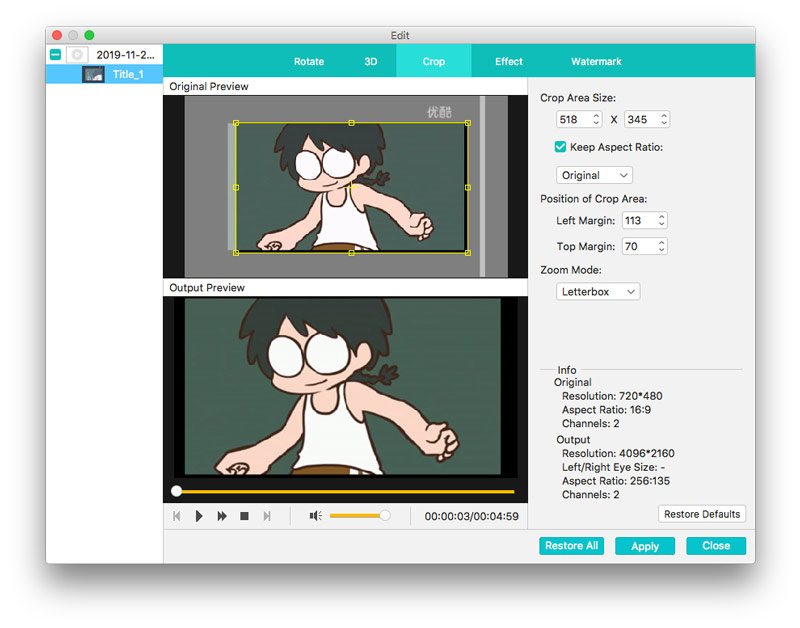
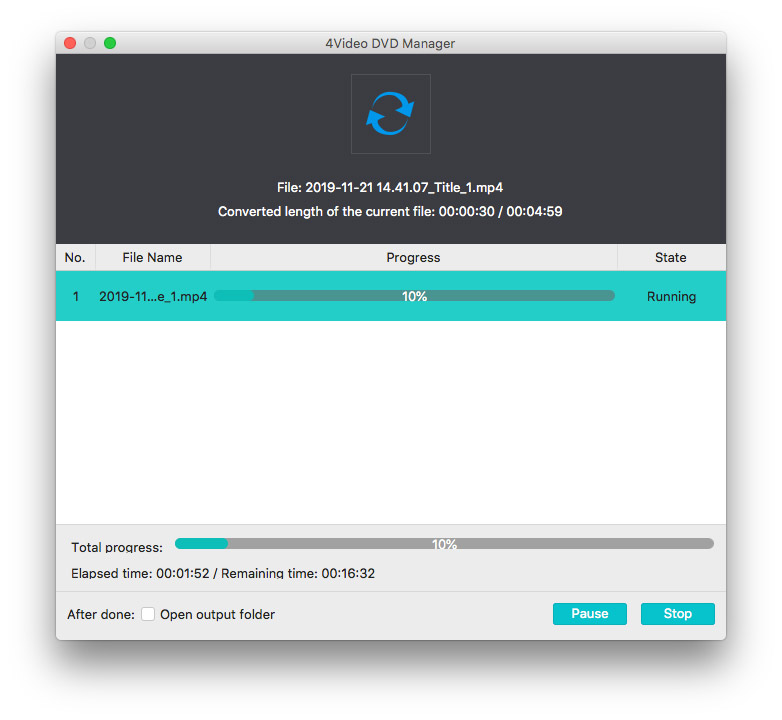
Kehren Sie danach zur Hauptoberfläche dieses Programms zurück und klicken Sie auf “Konvertieren”, um die DVD auf Ihre Festplatte unter Mac zu rippen; Sie können die DVD-Filme auch auf eine externe Festplatte übertragen, um sie flüssig abzuspielen.
Neben der oben genannten DVD-Übertragungssoftware finden Sie auch VLC, HandBrake usw., mit denen Sie ungeschützte DVDs auf die Festplatte rippen und konvertieren können.
Fazit
Egal, ob Sie DVD-Discs kaufen oder gebrannte DVDs mit einem Panasonic- oder Hitachi-DVD-Recorder erhalten – es ist nicht sinnvoll, eine große Menge an DVDs in Ihrem Zimmer zu stapeln oder sie mit einem schweren DVD-Player abzuspielen. Dieser Beitrag zeigt 2 Möglichkeiten, DVDs mit DVD-Ripper-Software unter Windows und Mac auf interne und externe Festplatten zu kopieren.
Haben Sie Fragen zum Speichern von DVDs auf der Festplatte?
Teilen Sie es mir mit, indem Sie einen Kommentar hinterlassen.